
 URL





 case-screenshot.jpg
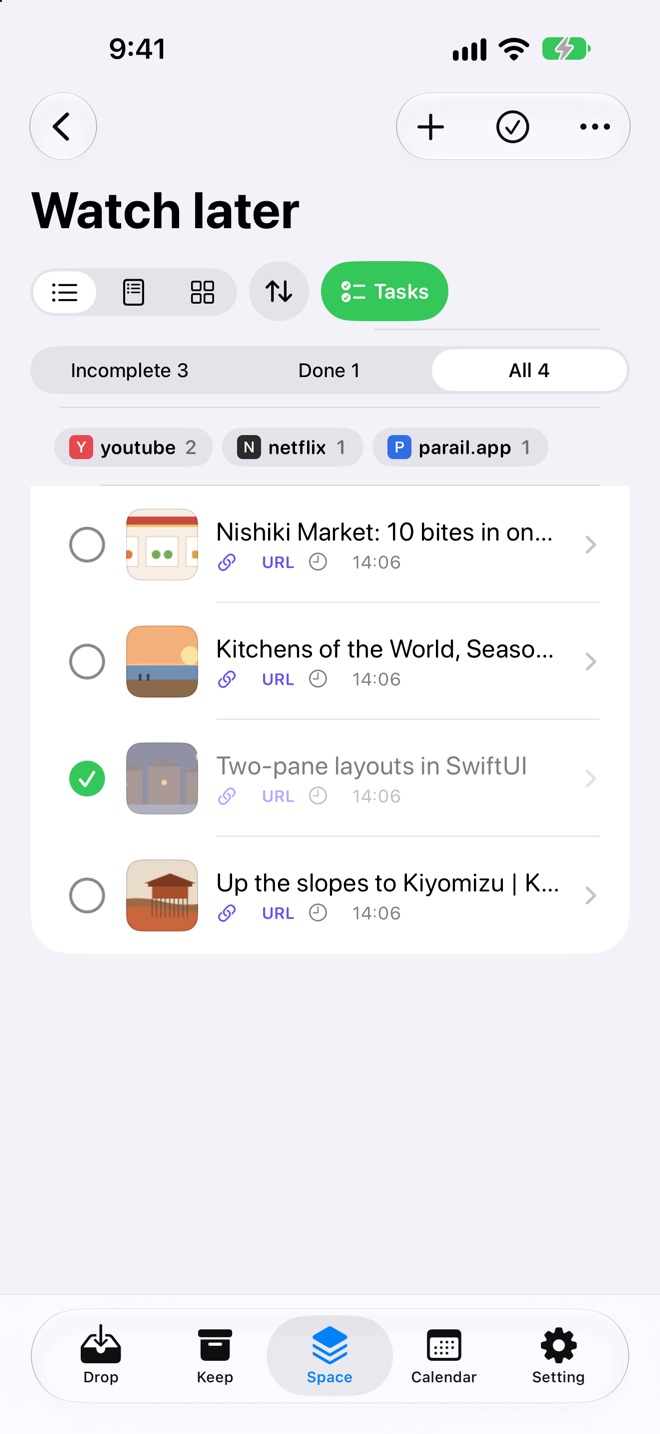
If screenshots are your notes
Screenshots go to FindDrop
Kept out of Photos. Search the text inside.
FindDrop is a place for things you'll use later. Screenshots, links to read later, photos for your blog or listings. Drop them in, let them tidy themselves up, and find them when you need them.
What goes in
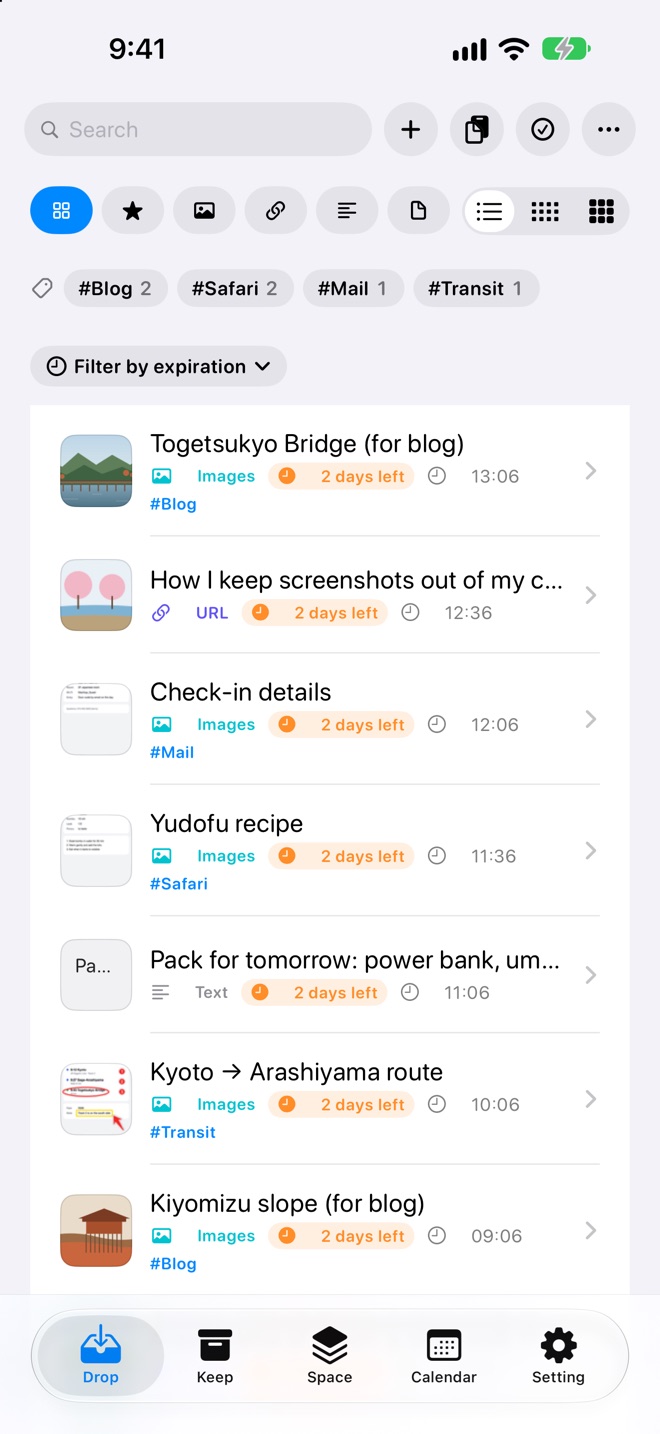 iphone-drop.jpg
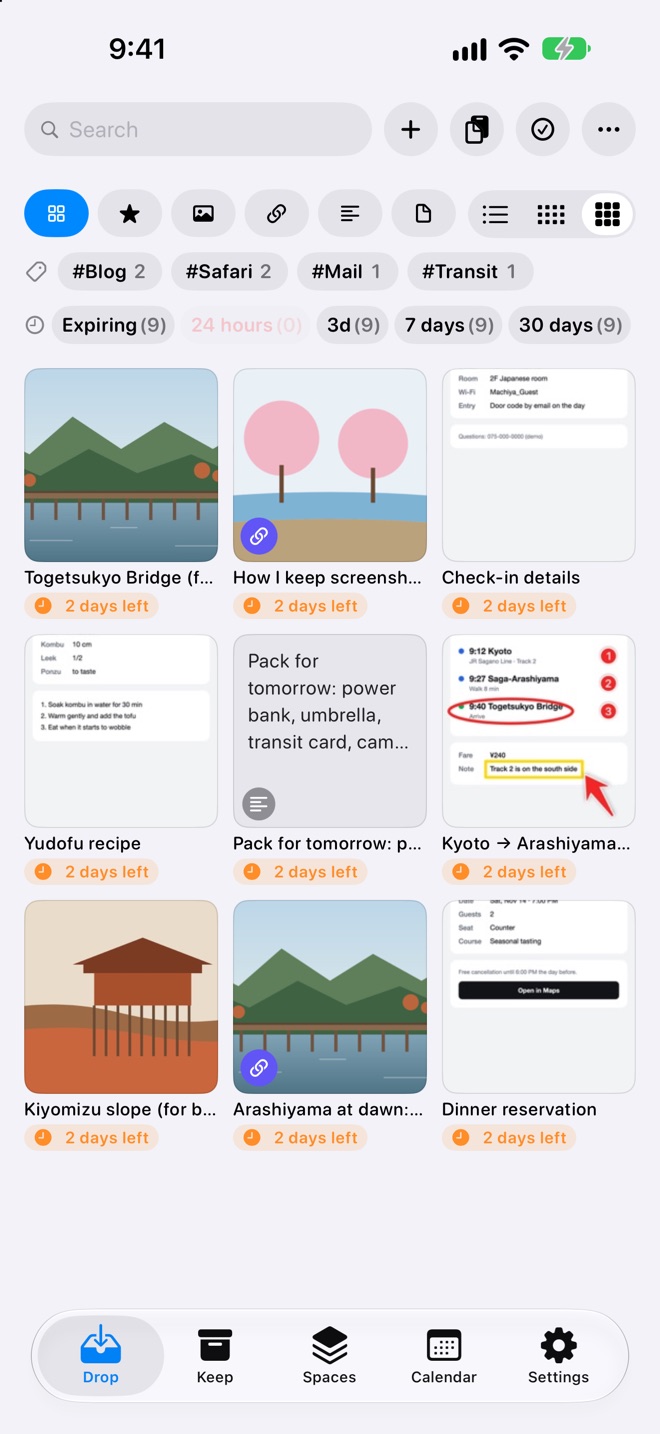 iphone-drop-grid.jpg
That's why FindDrop.
Everything for later, right here.
Screenshots, links, work-in-progress photos. Drop them in and find them when you need them.
What you don't keep clears itself on expiry.
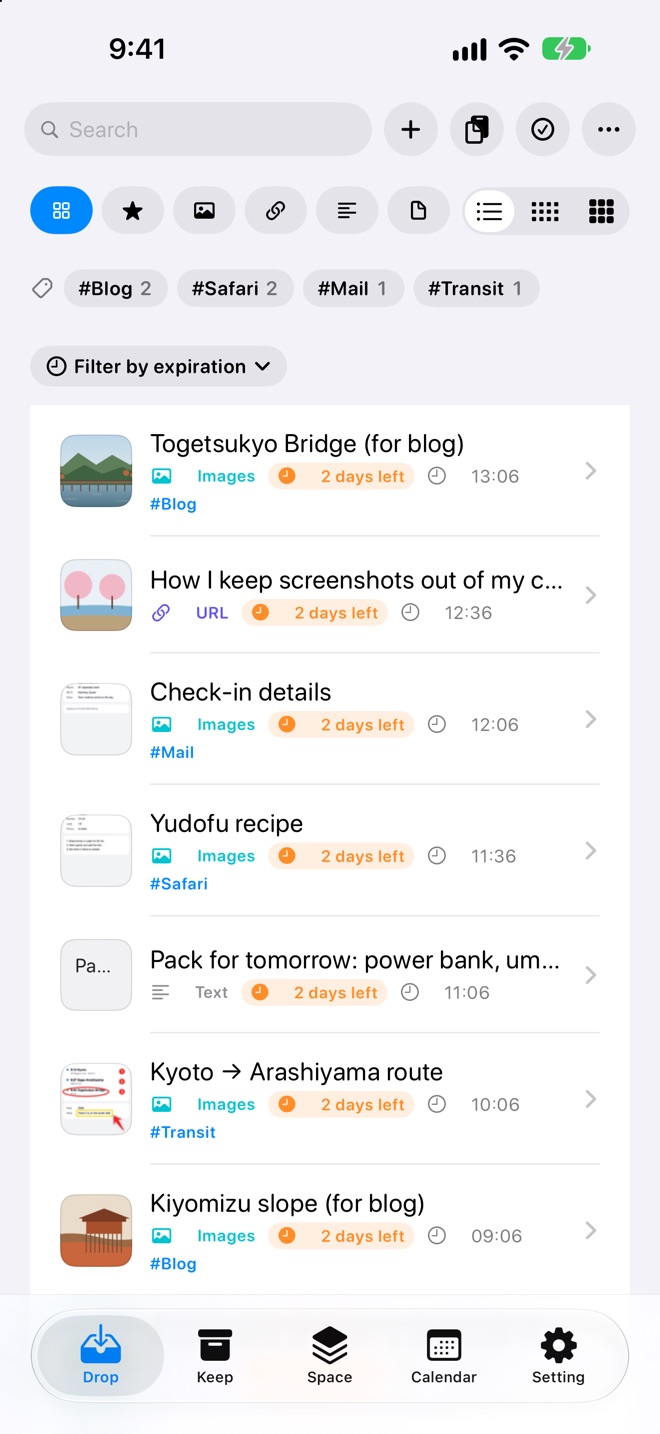
Share sheet, copy, screenshot, camera, drag and drop. Whatever you add lands in Drop first. All you decide is whether to keep it.
 Reservation24h left1 min left
 Togetsukyo24h left★
The place to set things down. Items expire on their own.
⏱ Expiry from 24 hoursThe place to keep things. No expiry.
★ Never expiresGroups by topic, like Watch later, Trip or App A. One item can live in several spaces.
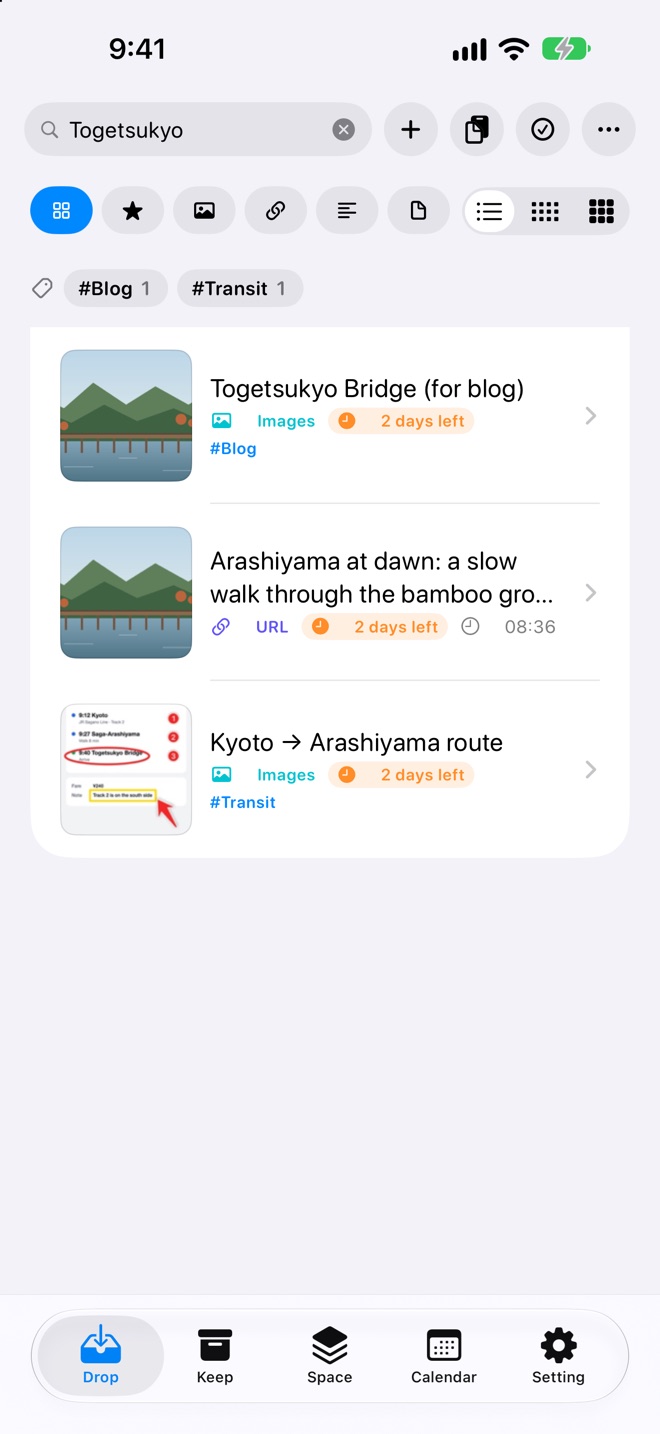
# Overlap freelyTo find things Search by the text in images, the site, the date or a half-remembered word. Links show a thumbnail and a summary.
Pick a scene to see the steps.
Take a screenshot as usual and share it to FindDrop from the thumbnail in the corner. You can edit it right away. FindDrop then offers to delete the copy iOS saved in Photos, so screenshots don't pile up.
Works today with no setup. Choose to always delete or keep in Settings.
Set up a shortcut once, then double-tap the back of your iPhone: the screenshot skips Photos and goes into FindDrop, into a space named after the app you had open. Take as many as you like; Photos stays the same.
One-time setup: follow Settings → Screenshot Import in FindDrop to create the shortcut and assign it to Back Tap.
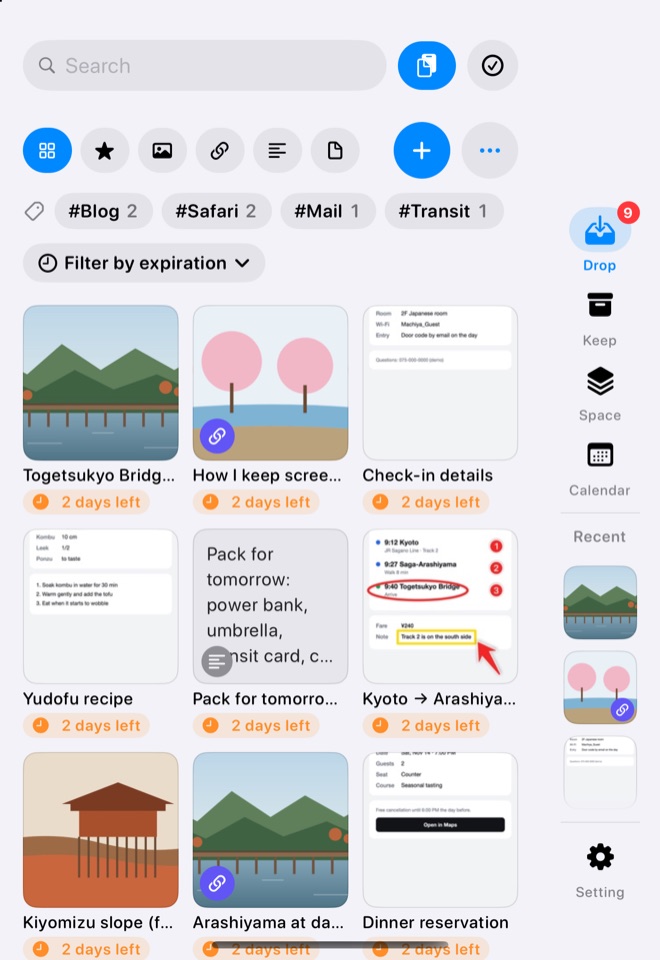
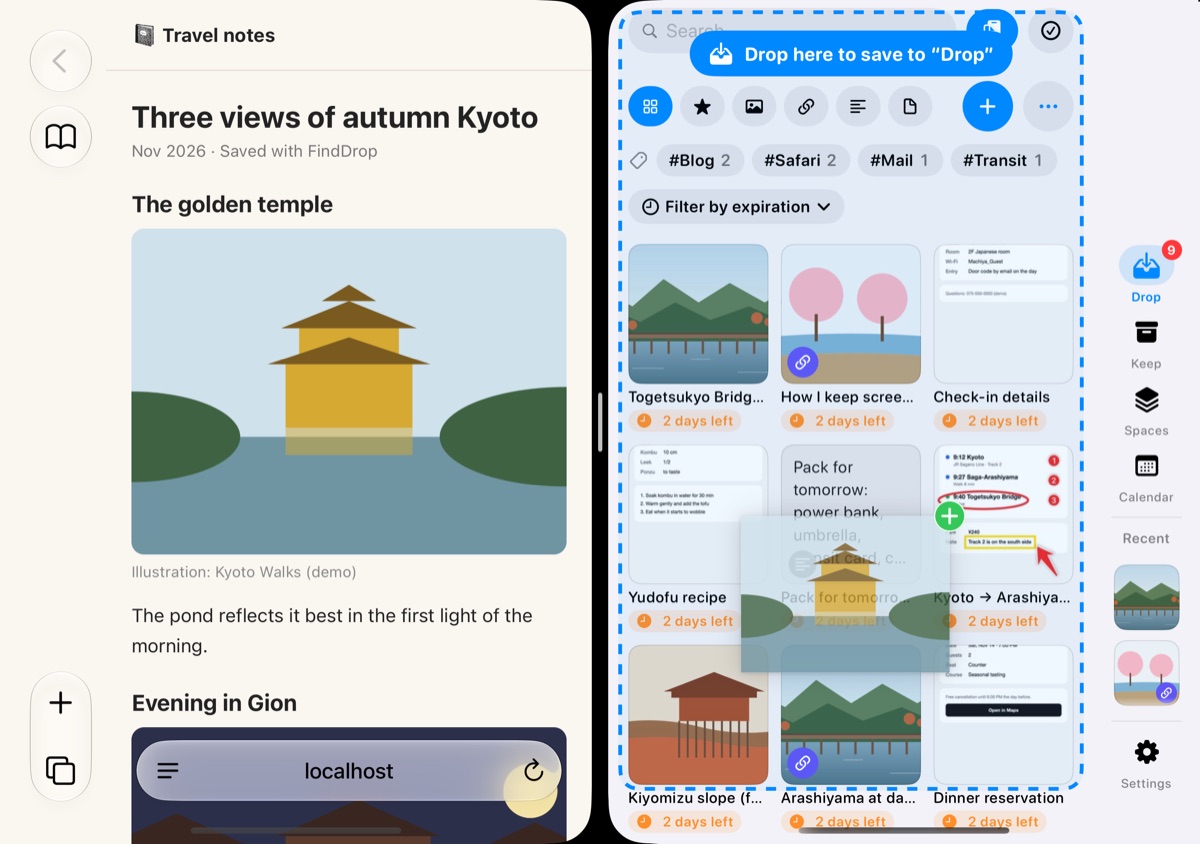
Closed, switch with the rail on the right edge. Open it for the list on the left and details on the right. Pick a day on the calendar and drag to a space.
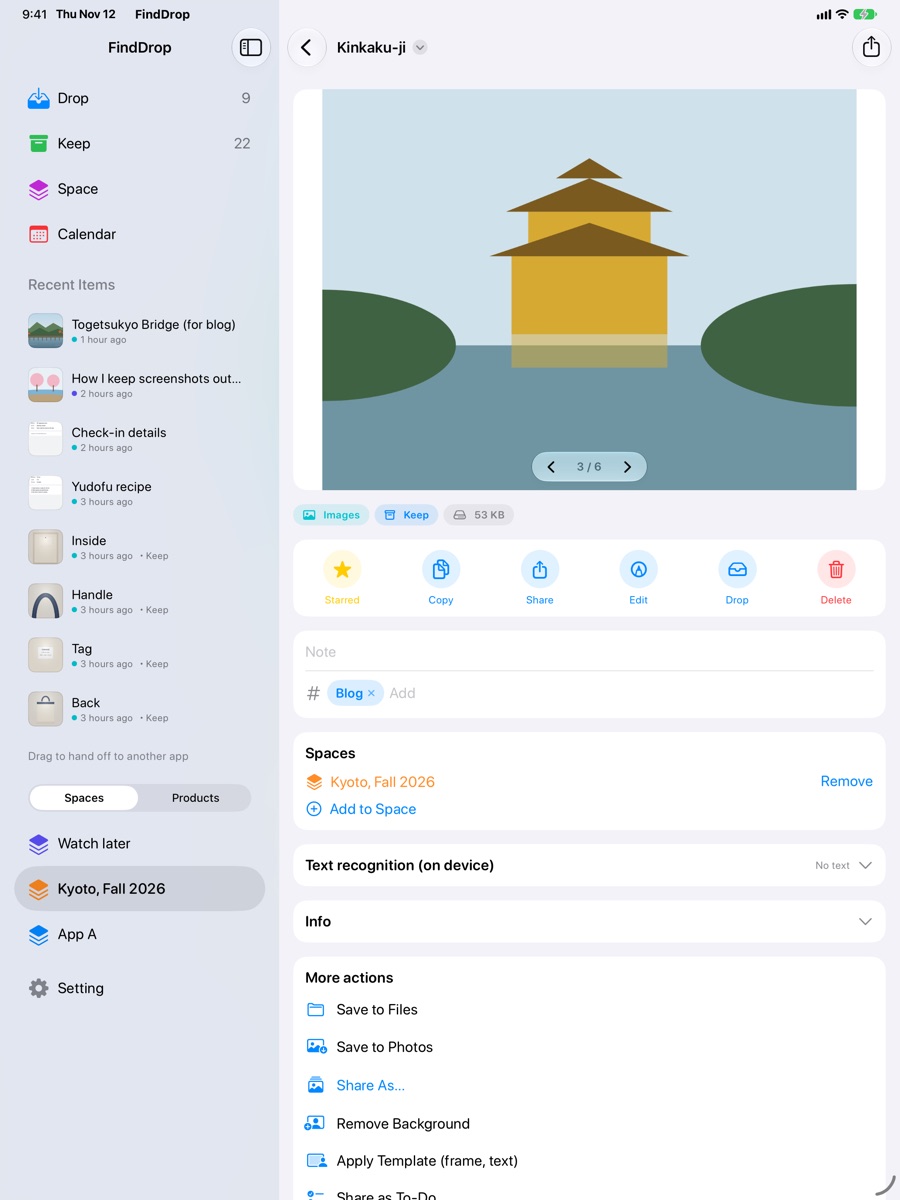
What you save from the share sheet on iPhone shows up on iPad and Mac. Screenshots taken on the Mac reach your iPhone too.
Start with whichever feels closest.
case-screenshot.jpgIf screenshots are your notes
Kept out of Photos. Search the text inside.
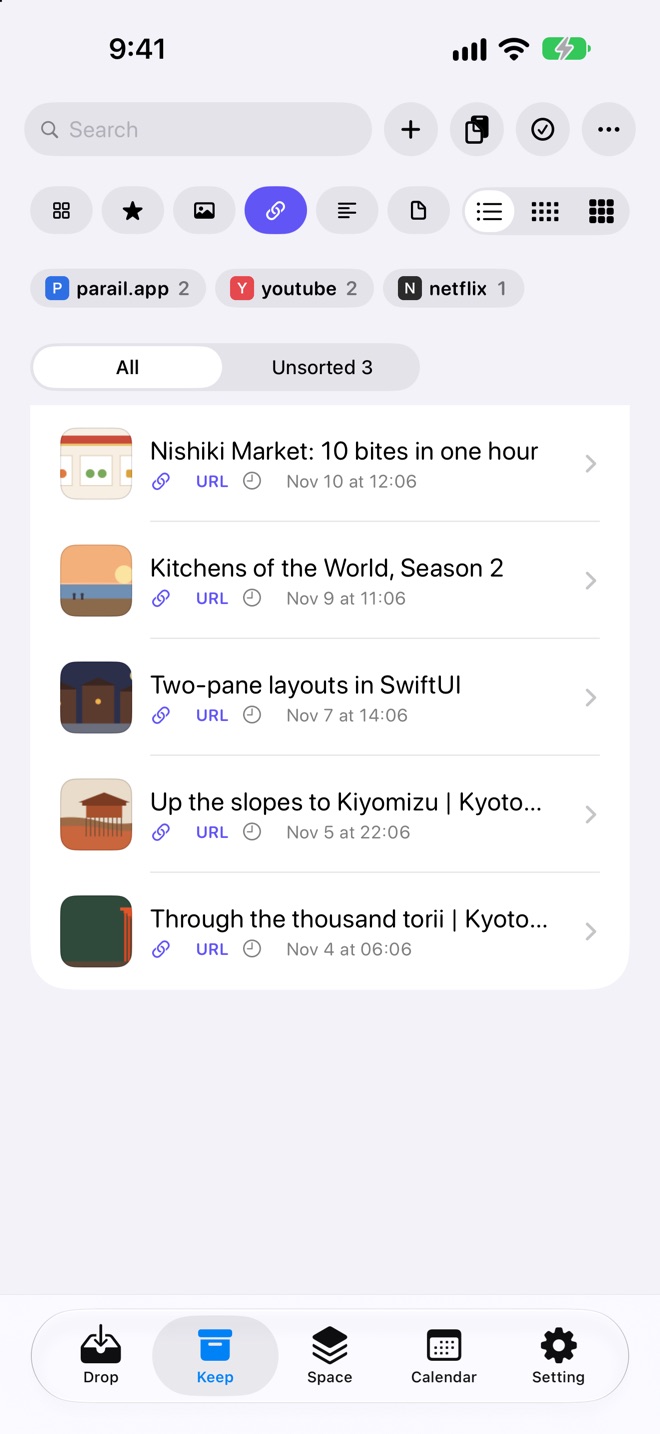 case-links.jpg
If you collect links
Listed with titles, thumbnails and summaries.
 case-expire.jpg
If you need a place to set things down
Keep only what matters. Deleted items can still be restored.
 case-edit.jpg
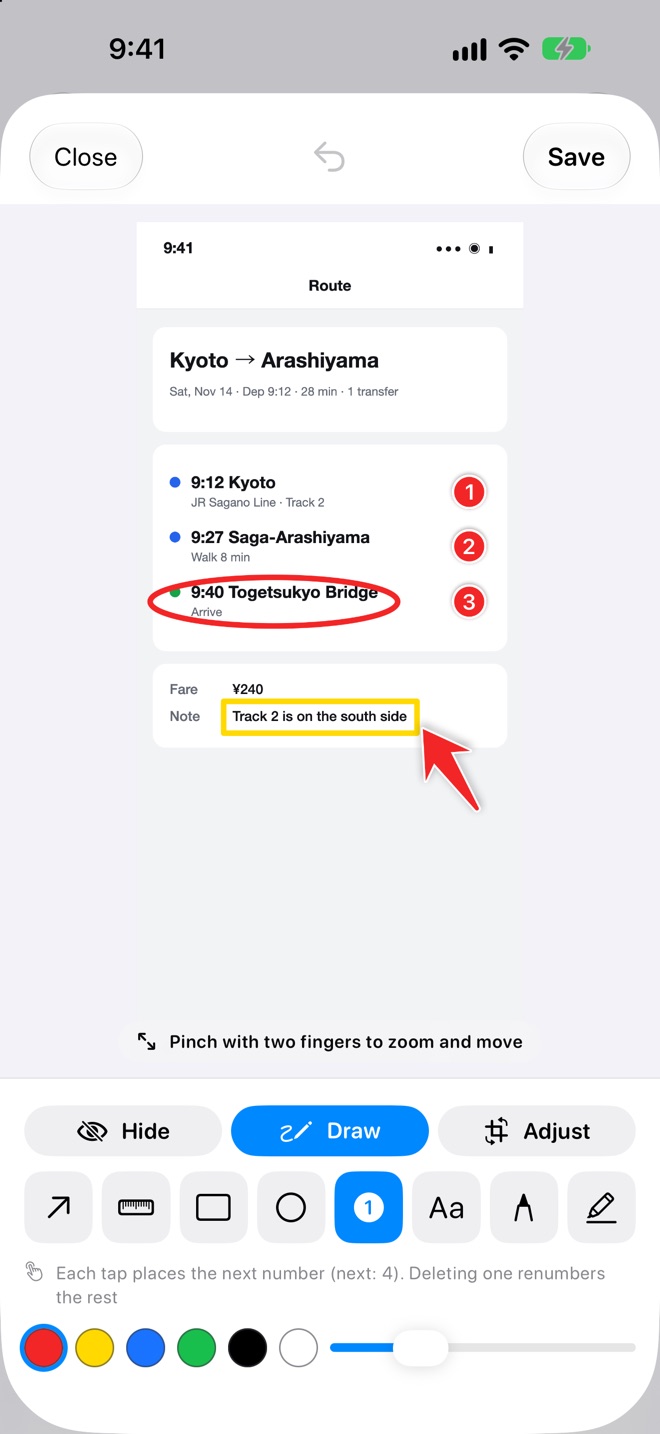
If you edit what you capture
Mosaic, numbers, arrows and crop.
For app developers and reviewers who take lots of screenshots. With a shortcut, each one goes into a space named after the app. Check off what you've reviewed.
Put photos and screenshots into a space for each post. Blur faces and add text on the spot, then drag them into your editor on the Mac.
Shoot each item into a product and the photos never touch your camera roll. Crop to square, add frames and text, and export for your marketplace.
Import the screenshots already in Photos and remove the originals from Photos (they go to Recently Deleted).
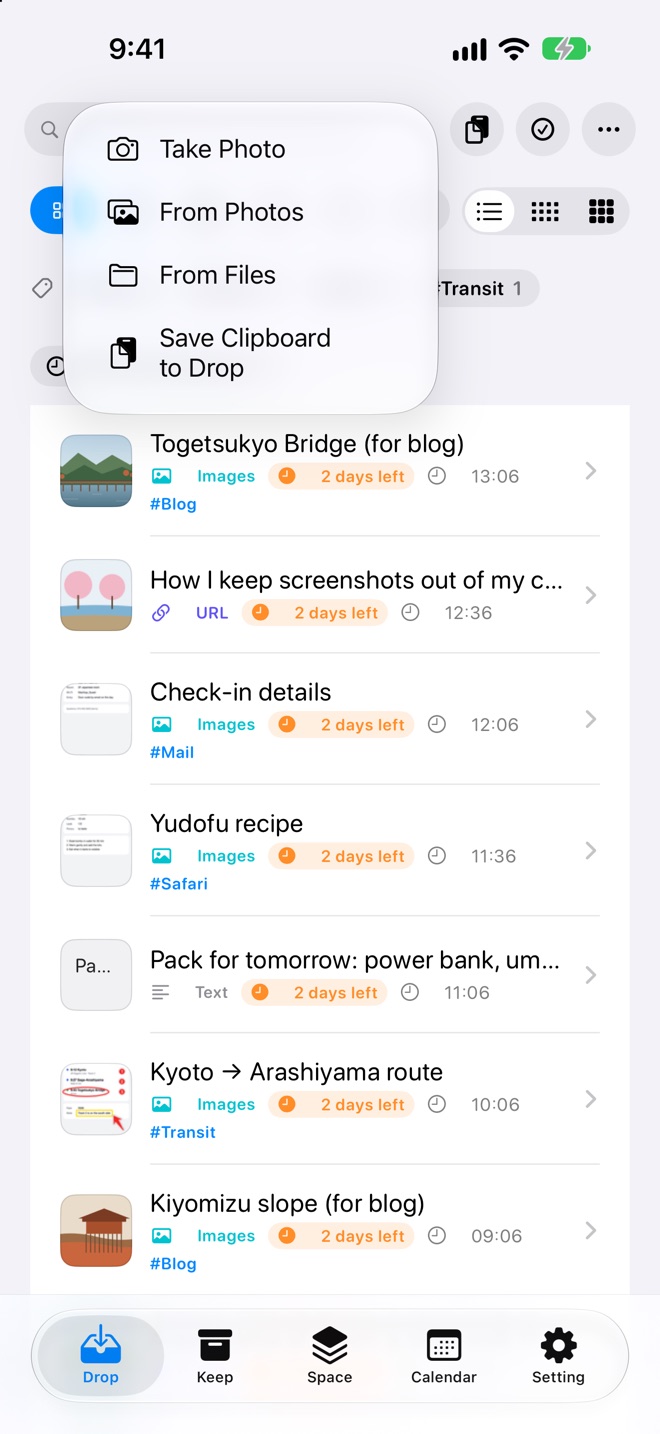
01 Import
From the share sheet, after copying, or with drag and drop. When you open FindDrop with something new on the clipboard, it offers to save it.
 f1-import.jpg
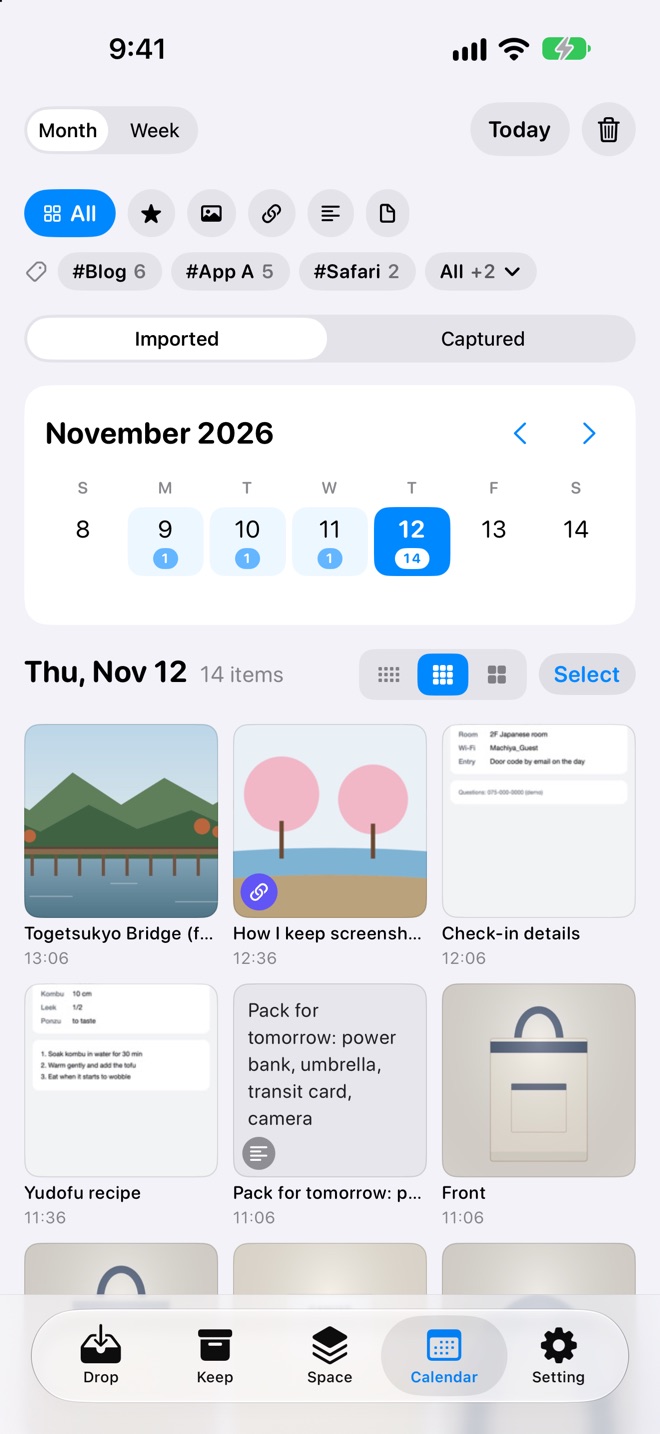
02 Drop and Keep
Items in Drop have an expiry and clear themselves. Move what you want to keep to Keep. Pick a day or month on the calendar to tidy up in bulk.
 f2-calendar.jpg
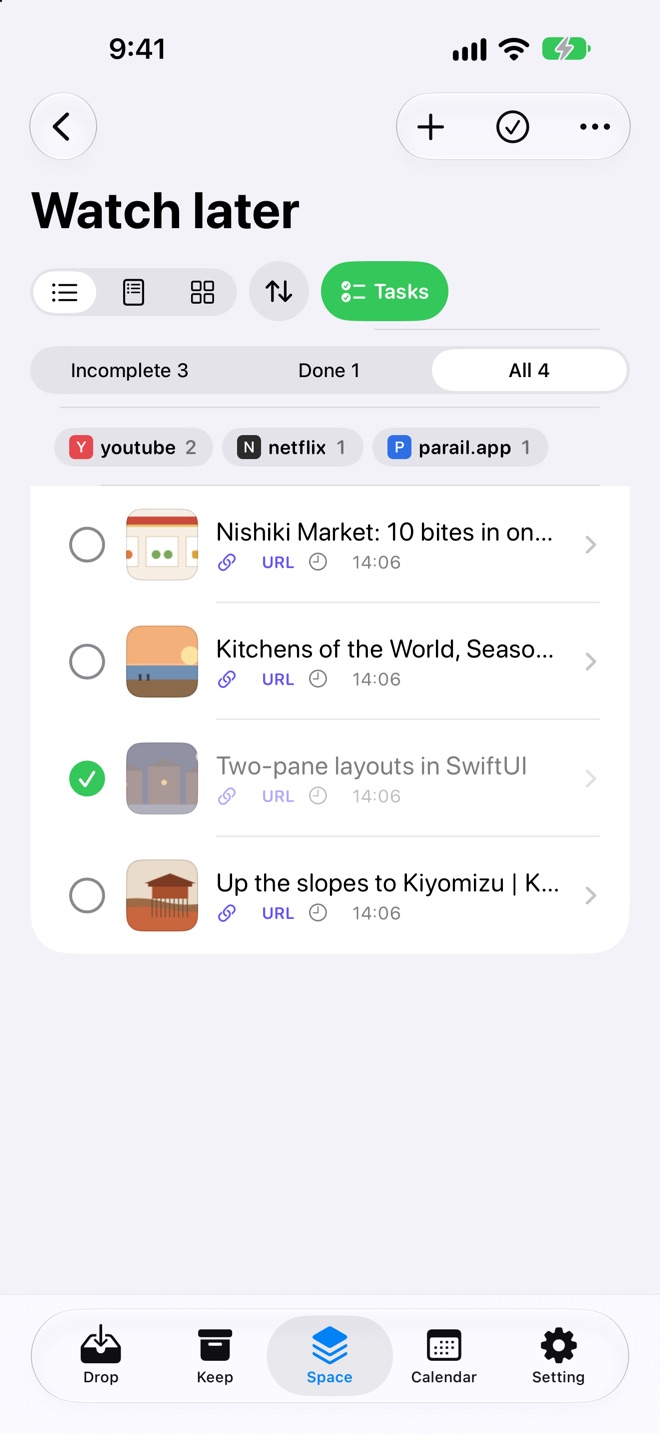
03 Spaces and rules
Set rules like screenshots, links from this site, or anything containing this word, and new items go to the right space or tag automatically.
 f3-space.jpg
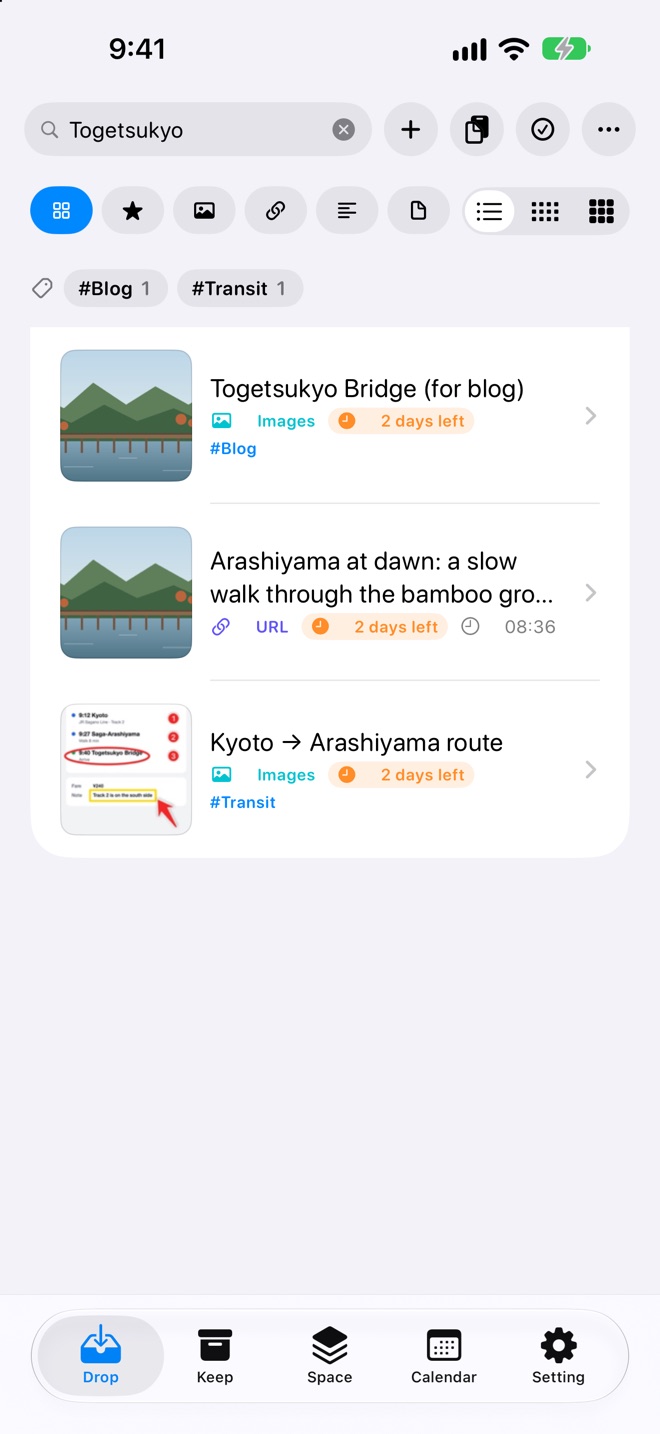
04 Search and read
Mix time and source, like “screenshot last week”. Searches the text in images, PDF text and even QR codes.
 f4-search.jpg
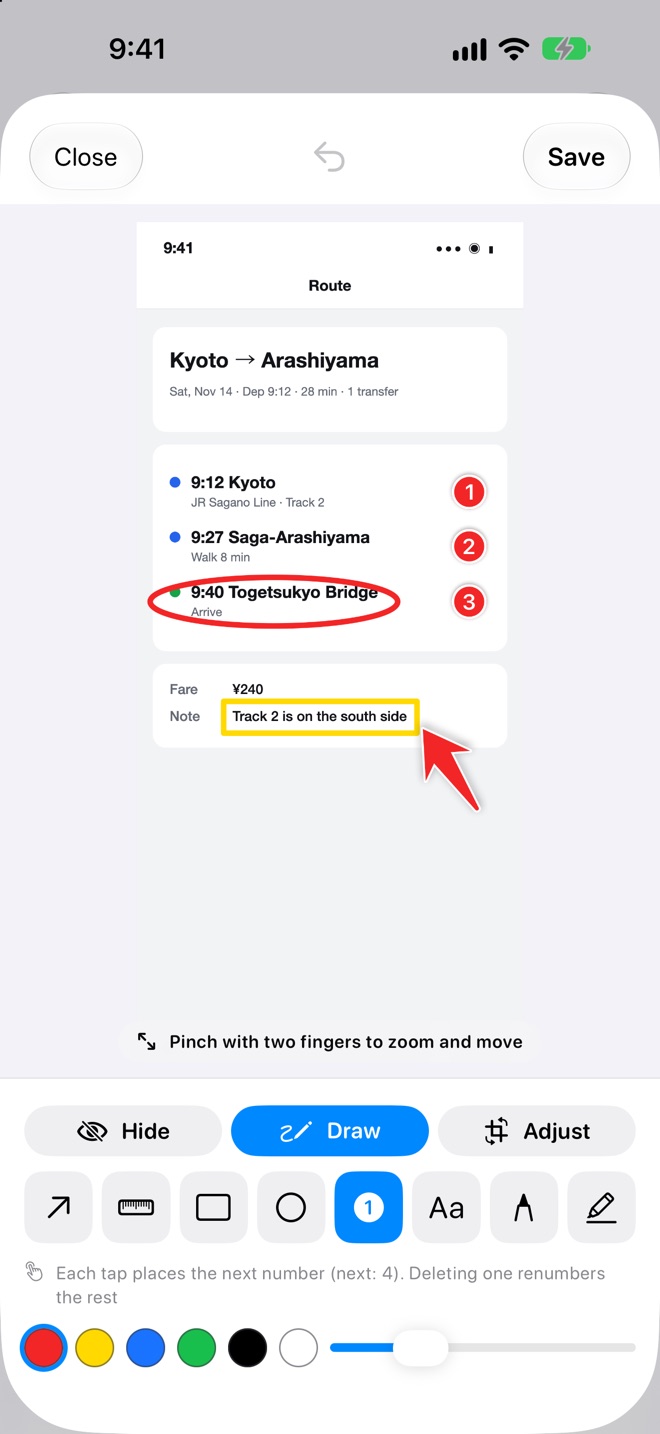
05 Edit
Mosaic, blur, numbers, arrows and text. Each tap places the next number, so step-by-step guides are quick to make. Smart Mask finds phone numbers and email addresses and hides them in one go.
 f5-edit.jpg
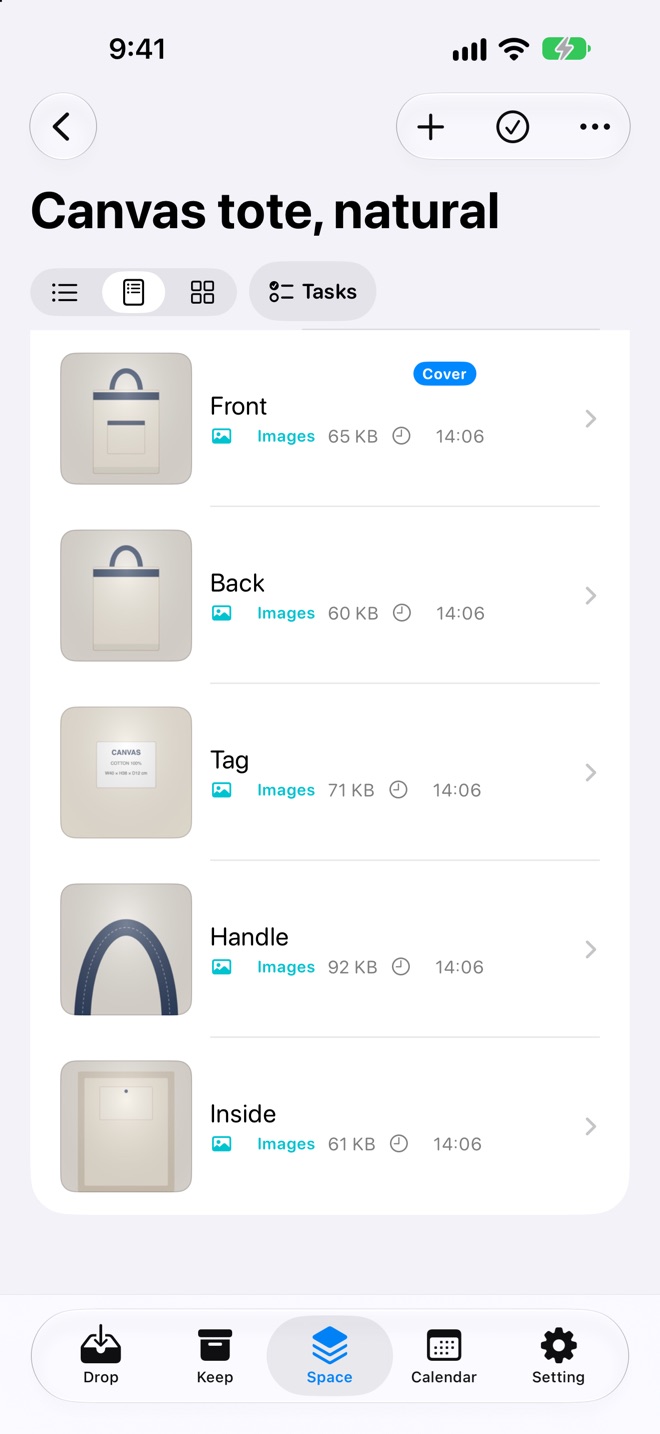
06 Products (resale)
Shoot each product in a row, keep the photos out of your camera roll, and export them in the size and count your marketplace needs.
 f6-product.jpg
Devices on the same Apple Account show the same library via iCloud.
A real screen recording (Japanese UI). The sync wait has been shortened.
 d-iphone.jpg
From any app, with the share sheet or a screenshot.
d-duo-closed.jpgClosed, a rail on the right edge. Open, list and details side by side.
d-duo-open.jpgPut two apps side by side and drag things straight in.
d-ipad.jpgDrag to and from other apps in Split View.
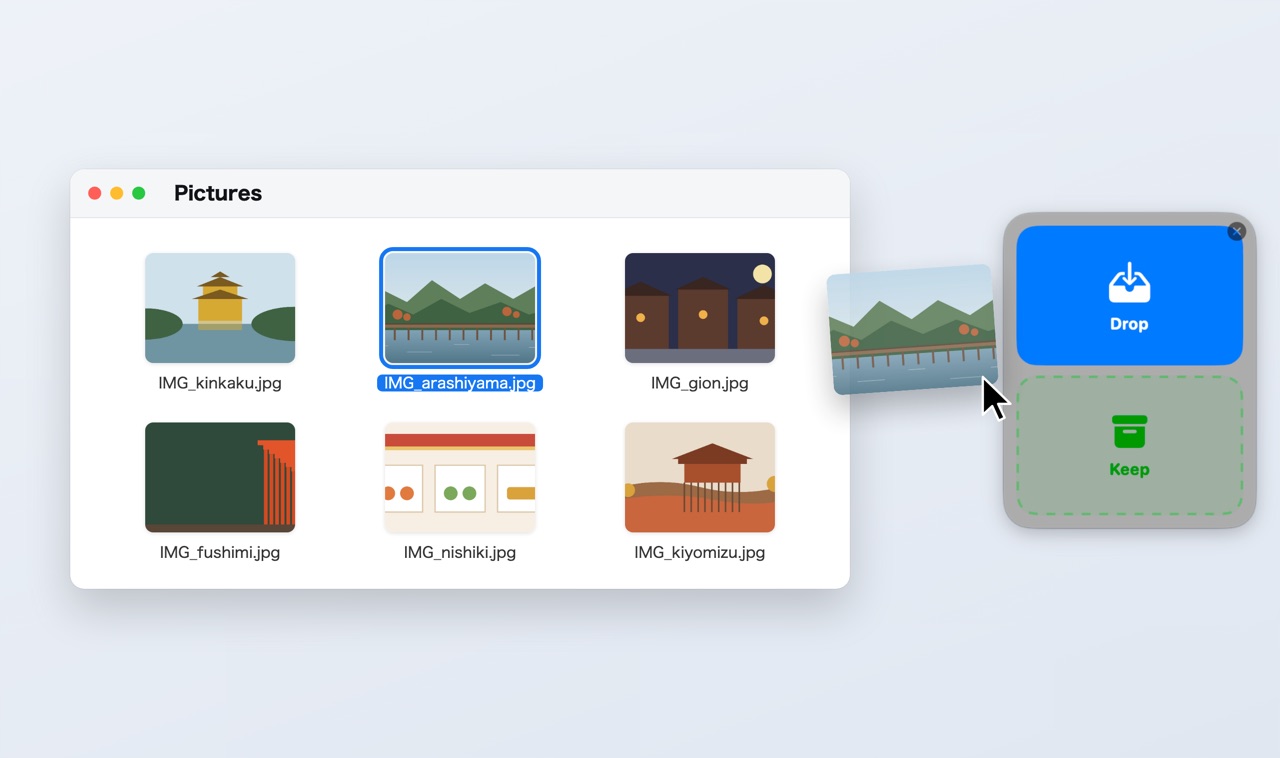
d-mac.jpgStart dragging in Finder or your browser and a Drop and Keep box appears at the edge of the screen. Just let go. Open it from the menu bar anytime. Your screenshot folder is imported automatically, and you can blur or number images in a large window.
The Mac app works for free within the free limits. Sync between iPhone and iPad comes with Plus; connecting your Mac needs Pro.
No subscription. Buy once and use it forever on the iPhone and iPad on your Apple Account (Pro adds the Mac).
Launch discount through December 31, 2026. See the App Store for your price.
Add, find and auto-tidy. The basics of FindDrop are all free.
No limits on items or expiry. Unlimited spaces, rules and templates, plus iCloud sync.
Everything in Plus, plus the Mac app. Plus owners can upgrade to Pro for the difference.
| Features | Free | Plus | Pro |
|---|---|---|---|
| Devices | iPhone, iPad, Mac | iPhone, iPad | iPhone, iPad, Mac |
| Items in Drop | 30 | Unlimited | Unlimited |
| Drop expiry | 24 hours | Your choice, per type, or never | Same |
| Items in Keep | 50 | Unlimited | Unlimited |
| Spaces | 3 | Unlimited | Unlimited |
| Import rules | 1 | Unlimited | Unlimited |
| Products (resale) | 3 | Unlimited | Unlimited |
| Editing (mosaic, numbers, arrows) | Within the Keep limit | ✓ | ✓ |
| Apply templates | 10 a month | ✓ | ✓ |
| Search, view, export | ✓ | ✓ | ✓ |
| iCloud sync | − | ✓ | ✓ |
| Mac app | Free limits | Free limits | ✓with sync |
Items in Keep never expire, even on the free plan. When Keep reaches 50 items, you just can't add more until you delete some.
US prices before the launch discount, which runs through December 31, 2026. The App Store shows the price for your country or region.
FindDrop has no servers and no sign-up. We never receive what you put in.
No advertising, analytics or tracking of any kind.
Text and QR codes in images are read on your device. Link summaries are made on device with Apple Intelligence where available.
Stored in the private area of your own iCloud. You can turn it off in Settings.
Link titles, images and text are loaded directly from each site. Read the privacy policy →
For iPhone, iPad and Mac. Coming soon to the App Store. Free to start.
Coming soon on theApp Store
 Back
 Tag
 Handle